

If you work with databases, SQL Server Management Studio (SSMS) is a key tool for managing your data. Knowing how to view data in SQL can save you time and make your work more efficient, whether you’re a developer, analyst, or business professional. This guide will show you how to view table data, edit entries, insert new records, delete unnecessary data, and even export your tables in SSMS. You’ll learn simple steps to navigate your databases quickly and accurately.
By following this guide, you’ll gain the confidence to manage your data like a pro, access the information you need instantly, and handle your database tasks without stress.
Why SQL and SSMS Are Important for Data Management

SQL (Structured Query Language) is one of the most common tools for managing data. Knowing how to view data in SQL is a basic but essential skill for anyone working with databases.
Here’s why it matters:
- Quick data access – SQL helps you search, filter, and find exactly what you need from large datasets, saving time and avoiding mistakes.
- Keep data accurate – With SQL Server Management Studio (SSMS), you can safely view, edit, add, or remove records, keeping your data organized and reliable.
- Used everywhere – Many businesses rely on SQL Server, so these skills are in demand and useful across different industries.
By learning how to use SQL and SSMS, you can work faster, make better decisions based on your data, and ensure your database stays accurate and easy to manage. Starting with viewing data in SQL is the first step to becoming confident in managing any database.
How to Easily View Data in SQL?
Viewing data in SSMS is the first step toward taking full control of your database. By learning how to view data in SQL, you can quickly access tables, check records, and get a clear picture of your database structure. This makes it easier to find the information you need, make updates, and ensure your data stays accurate and organized.
Step 1: Connect to Your Database
- Open SQL Server Management Studio (SSMS). Launch the application to start managing your databases and prepare for connecting to your SQL Server instance.
- Enter the server and login details. Type your server name, choose the authentication method, and provide your username and password if required.
- Click Connect. Press the Connect button to access your SQL Server and start viewing or managing your database data.
Step 2: Expand Your Database
- In the Object Explorer, expand the database you want to work with.
- Click on Tables to see all tables in that database.
Step 3: Open Table Data
- Right-click the table you want to access to open the context menu.
- Choose an action: select “Select Top 1000 Rows” to view data or “Edit Top 200 Rows” to modify records.
- View your data in a grid format, making it easy to browse, analyze, or update records quickly.
Pro Tip: Using SELECT queries allows you to filter and sort data without opening the entire table.
How to Edit Table Data in SQL Server Management Studio
When working with databases, knowing how to view data in SQL is just the first step. Often, you’ll need to edit or update records to keep your data accurate. SQL Server Management Studio (SSMS) makes this process simple. Start by right-clicking the table you want to edit and selecting Edit Top 200 Rows. You can then modify data directly in the grid, making updates fast and intuitive.
This approach is useful for correcting errors, updating outdated information, or testing changes without writing complex queries. Always proceed carefully and make backups, especially when working with live tables, to prevent accidental data loss. By mastering these steps, you can navigate your database efficiently, maintain data integrity, and improve overall workflow. Even though there are some software to recover delete file or folders.
Editing data also allows you to insert new records, delete unnecessary entries, or quickly test changes before applying them to the entire table. Understanding how to view data in SQL alongside editing techniques ensures you can manage your database fully. With SSMS, these tasks are accessible even for beginners, helping you maintain accurate and actionable data for business or development projects.
How to Export Data from SQL Server Management Studio
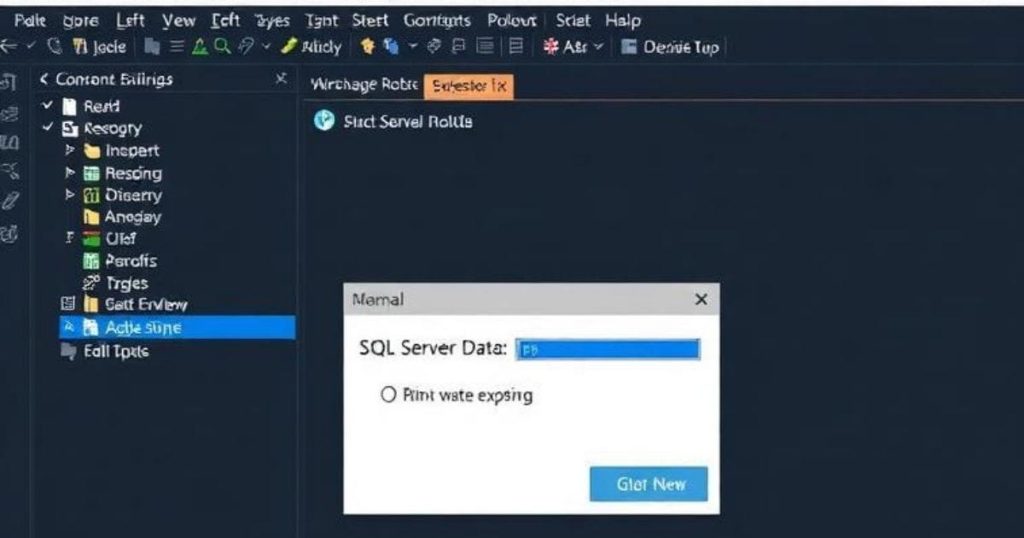
Exporting data in SSMS allows you to use it in Excel, CSV, or other applications. This is helpful for analysis, reporting, or sharing your data without writing complicated SQL queries. Follow these simple steps:
Step 1: Start the Export Process
- Right-click your database in Object Explorer.
- Go to Tasks → Export Data to launch the Export Wizard.
Step 2: Configure Your Export
- Select the source table you want to export.
- Choose the destination for your data, such as Excel, CSV, or another SQL Server.
- Use the wizard to map columns and adjust any options as needed.
Step 3: Complete the Export
- Click Finish to start transferring your data.
- Once the process is complete, open the output file to make sure all data is exported correctly and matches your original table.
Pro Tip: Always double-check the exported file for completeness and accuracy before using it for reports or analysis.
How to Enter Data in SQL Server Management Studio?
In SSMS, knowing how to view data in SQL is just the first step. Inserting new records is equally important to keep your database up to date. To add data, right-click the table you want to update and select Edit Top 200 Rows. This opens the table in a grid view, allowing you to see existing records and easily navigate to the bottom to enter new data.
Simply type your new values into the blank row and press Enter to save the record to your database. You can repeat this process for multiple entries, making it quick and efficient. Always double-check your entries for accuracy, especially when working with live data, to maintain database integrity. By mastering this method, you can efficiently view, insert, and manage your data in SQL Server Management Studio.
How to Delete Data in SQL Server Management Studio
Knowing how to view data in SQL helps you identify unwanted records before deletion. Removing data should be done carefully to prevent accidental loss and maintain database integrity.
- Method 1: Using the Grid: Open Edit Top 200 Rows, select the row you want to remove, and press Delete. This is a simple way to delete individual records while visually confirming the data.
- Method 2: Using SQL Query. Use a SQL command like: DELETE FROM CUSTOMERS WHERE CUSTOMER ID 5 So, Always include a WHERE clause to delete specific records safely and avoid removing all table data accidentally.
Tips for Efficient Table Management in SSMS
- Use filters: Apply WHERE clauses to display only the data you need, making it easier to analyze and reducing clutter when working with large tables.
- Sort columns: Click any column header to sort data ascending or descending, helping you quickly find the information you need.
- Backup before editing: Always export or back up your tables before making major changes to prevent accidental data loss and maintain database integrity.
- Limit rows: Use TOP N Rows to load only a specific number of records, improving performance and avoiding delays when working with large datasets.
FAQ
1. How do I view table data quickly in SSMS?
Right-click the table and choose Select Top 1000 Rows to view data quickly. Alternatively, write a custom SELECT query to filter and display only the records you need for efficient database management.
2. Can I edit multiple rows at once?
You can update data by editing the grid directly or by running an UPDATE query with a WHERE clause to modify specific records safely and efficiently in your SQL Server table
3. Why is SQL still popular for data management?
SQL is a powerful and reliable language widely used across industries. It enables fast querying of large datasets, ensures data integrity, and provides a structured, efficient way to manage and organize critical business information
4. What is Master Data Management in SQL Server?
Data governance is the strategy for centralizing, organizing, and maintaining consistent critical data across an organization. SQL Server Management Studio (SSMS) helps implement these rules, making it easier to manage, monitor, and ensure data accuracy efficiently
Sum Up
SQL Server Management Studio isn’t just a tool, it’s your key to managing data efficiently and accurately. Learning how to view data in SQL, edit tables, export records, and delete unnecessary entries can make your workflow faster and more reliable.
Start by practicing with hands-on exercises or tutorial videos, like Brainboxvideo style guides, to gain confidence navigating SSMS. With regular use, you’ll be able to handle any SQL database smoothly, maintain clean and accurate data, and make informed decisions. Mastering these skills saves time and keeps your organisation’s data professional and actionable.








Leave a Reply