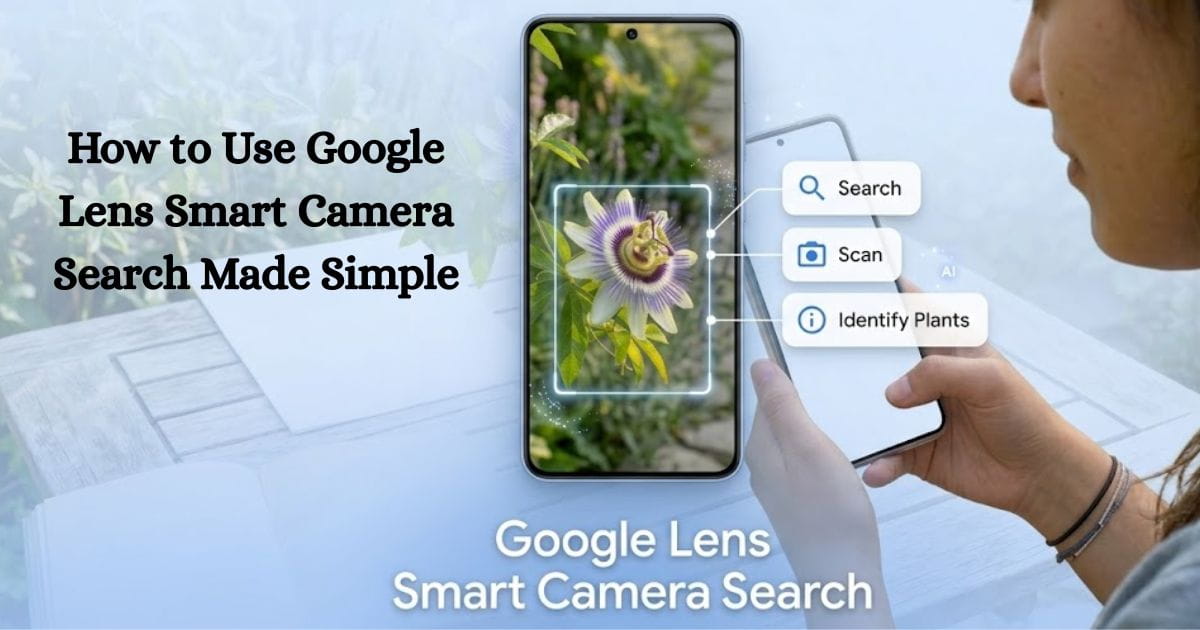
Searching for information has changed dramatically over the last few years. Instead of typing descriptions into a search engine, people can now simply point their phone camera at an object and instantly learn about it. This shift toward visual search technology is making information easier to access, and one of the most powerful tools behind it is Google Lens.
Many people search for how to use Google Lens because it allows them to identify objects, translate text, and perform reverse image searches using only their phone camera. The tool relies on AI image analysis and object recognition technology to compare images with billions of visual references across the web.
Whether you’re using an Android device, iPhone, Chromebook, PC, or MacBook, this smart camera search tool can quickly turn photos into useful information.
In this complete guide, you will learn:
- What Google Lens is
- How the visual search engine works
- How to use Google Lens on Android, iPhone, PC, MacBook, and Chromebook
- How to perform a reverse image search
- practical tips to get better results
By the end, you’ll understand exactly how to use Google Lens in everyday situations. Lets dive into it!
What Is Google Lens?
Google Lens is a visual search engine developed by Google that allows users to search the internet using images instead of text.
Rather than typing a description into a search bar, you can simply use your phone camera to scan an object. The system then performs image recognition and analyzes the visual data using machine learning.
Within seconds, it can identify:
- plants and animals
- books and artwork
- landmarks and buildings
- electronics and products
- text in different languages
So, In simple way the tool uses your phone’s camera to scan what you see, then artificial intelligence analyzes the image and compares it with information available across the web.
This process turns your phone into a smart camera search tool that connects the real world with useful online information in seconds.
When Was Google Lens Introduced?
The visual search tool Google Lens was first introduced by Google in May 2017 during the annual developer conference Google I/O 2017. The announcement was made by Sundar Pichai, who presented the technology as part of Google’s broader shift toward becoming an AI-first company.
At the time, the goal behind this new visual search technology was to change how people interact with information. Instead of typing queries into a search engine, users could simply point their smartphone camera at an object, text, or scene and receive instant results.
By combining image recognition, AI image analysis, and Google’s vast web index, the tool was designed to understand what a user sees in the real world and provide relevant information immediately.
Early Integration Into Google Services
When the feature was first released, it was not a separate application. Instead, Google integrated the technology into existing services such as Google Assistant and Google Photos. This allowed users to analyze photos already stored on their devices or interact with objects in real time using their phone camera.
For example, someone could scan a restaurant sign to see reviews, point the camera at a book cover to find online details, or translate foreign text instantly.
Over time, the visual search system continued to evolve. Engineers and product teams at Google worked to improve the underlying object recognition technology and machine learning models that power the tool. As the technology matured, Google expanded its availability across multiple devices.
Today, Google Lens can be accessed through several platforms, including:
- the Google app
- Google Photos
- Android camera apps
- desktop browsers using Google Chrome
This expansion transformed the tool from a simple experiment into a widely used camera search tool that helps millions of users perform visual searches every day.
How does Google Lens work?
To understand how to use Google Lens, it helps to know what happens behind the scenes when you scan an image. I mention the 3 steps below, which will help you to understand how it works.
1. Image Capture
When you point your camera at an object, the system captures visual data such as shapes, colors, and patterns. This stage is often called mobile camera scanning.
2. AI Image Analysis
Next, Google’s machine learning models perform AI image analysis to detect objects within the image. This technology relies on advanced object recognition technology. In simple terms, object recognition technology is a type of artificial intelligence that allows computers to recognize and classify objects in images or videos.
When you scan something with Google Lens, this technology analyzes the visual features of the object and compares them with millions of images stored in Google’s database.
For example, the system can detect: text blocks, product shapes, plant structures, architectural features, etc.
3. Web Comparison
Finally, once the AI analyzes the image, it compares the visual data with Google’s vast collection of indexed images from across the web. This allows the Google Lens visual search engine to quickly identify the object and provide accurate, relevant results, whether it’s product information, similar images, translations, or detailed descriptions.
These results may include – information pages, shopping results, similar images, translations, product links, etc. This entire process takes only a few seconds to provide you with relevant results.
Why People Use Google Lens?
Now that you understand how Google Lens works, let’s discuss why it has gained so much popularity in such a short time. Learning how to use Google Lens doesn’t just make searching easier; it transforms the way people interact with the world around them. Here are the top reasons why millions of users rely on this smart camera search tool every day:
1. Faster Searching
Instead of typing a long description like “red sneakers with white stripes, brand name,” you can simply scan the shoes. The system will instantly find similar products online.
2. Instant Information
If you come across an unfamiliar plant, device, or book, scanning it with Google Lens can reveal detailed information instantly. For example, spotting a new flower in your garden, a gadget in a store, or a book at a friend’s house allows Google Lens to identify the plant’s species, show the product’s price and reviews, or provide the book’s summary and author details all within seconds.
3. Real-World Learning
Students often use the tool to scan textbooks, identify historical landmarks, or get explanations for homework questions. Because of these abilities, visual search technology is becoming one of the fastest-growing ways people interact with the internet.
How to Use Google Lens: Step-by-Step Guide

If you’re wondering how to use Google Lens, don’t worry, it’s easier than it sounds. Here’s a simple step-by-step guide to get you started:
- Open the Google app on your smartphone.
- Tap the Lens camera icon in the search bar to launch the visual search tool.
- Allow camera access if prompted. This lets Google Lens scan the real world in real time.
- Point your camera at the object you want to analyze. For example, imagine you find a beautiful but unfamiliar flower in your garden.
- Tap the screen to focus on the flower. Make sure it’s well-lit and centered for the best results.
- Wait a few seconds while Google Lens performs AI image analysis to detect the object, identify its features, and compare it with millions of images online.
Once the scanning is complete, the system will display relevant results, such as:
- Information pages describing the plant species and care tips
- Related images for similar plants or flowers
- Shopping links, if it’s a product you can buy
- Translations of any text appear on signs or labels
- Website links with detailed articles or guides
You can also scan photos already saved in your gallery to identify plants, gadgets, books, or any object you’ve captured before. For plants, focusing on a single flower or leaf improves accuracy, and using natural lighting helps Google Lens give you precise results almost instantly. So, you can follow the same guide to search for anything using Google Lens.
How to Use Google Lens on Android?

If you’re wondering how to use Google Lens on Android, you’re in luck; most Android devices come with this feature already integrated, making visual searches fast and easy.
Whether you want to identify a plant in your garden, check details of a gadget in a store, or find information about a book, Google Lens lets you do it instantly.
Method 1: Using the Google App
- Open the Google app on your Android phone.
- Tap the Lens icon in the search bar to activate the camera search tool.
- Hold your camera over the item you want Google Lens to detect. For example, scan a new plant you see in a park.
- Tap the screen to focus on the object for better recognition.
- View instant results, including the plant’s name, species details, related images, or online articles.
Method 2: Using Google Photos
If the object is already captured in a photo, you can use Google Photos to analyze it:
- Open Google Photos on your Android device.
- Select the image you want to analyze.
- Tap the Lens icon to let Google Lens scan the photo.
- Receive instant results, such as identifying the plant, product details, or text translations.
Method 3: Using Android Camera Integration
Many newer Android phones allow direct Google Lens access through the camera app:
- Open your camera app.
- Find the Lens or Google Lens icon and select it.
- Point the camera at the object or scene.
- Wait a few seconds for AI image analysis to provide results instantly.
How to Use Google Lens on iPhone?
While iPhones don’t have Google Lens built into the system by default, you can still enjoy all the powerful visual search features by using Google’s apps. Learning how to use Google Lens on iPhone is straightforward, and it works just as effectively as on Android devices.
Method 1: Using the Google App
- Download the Google app from the App Store if you haven’t already.
- Open the app and make sure it has permission to access your camera.
- Tap the Lens icon in the search bar to launch the visual search tool.
- Point your camera at an object you want to identify like a unique plant in your garden or a product in a store.
- Tap the screen to focus on the object for better AI recognition.
- Review the results, which may include detailed information, related images, online articles, or shopping links.
Method 2: Using Google Photos
If the object is already in your camera roll, Google Photos lets you scan it instantly:
- Open Google Photos on your iPhone.
- Select the image you want to analyze.
- Tap the Lens icon to scan the photo.
- The system will provide instant insights about the object, such as plant species, product details, or text translations.
How to Use Google Lens on iPhone Without the App?
Not everyone wants to install the Google app, but you can still use Google Lens features directly through your browser. This method works like a simplified desktop image search, letting you identify objects, find visually similar images, or gather information—all without installing any apps.
Steps to Use Google Lens Without the App
- Open Safari or any web browser on your iPhone.
- Go to Google Images.
- Tap the camera icon in the search bar to start a visual search.
- Upload a photo from your gallery. This could be a plant, gadget, book, or any object you want to identify.
- View visually similar images and related results, including product details, information pages, or other references.
For best results, use high-quality, clear images. Single objects with good lighting are recognized more accurately, making the browser image search almost as effective as the Google Lens app.
How to Use Google Lens on Chromebook?

Even on a Chromebook, you can use Google Lens to perform visual searches and get instant information about objects, products, or images. Chromebook users rely on browser-based AI image recognition to analyze photos, just like on mobile devices.
Steps to Use Google Lens on Chromebook
- Open the Google Chrome browser.
- Go to Google Images.
- Click the camera icon in the search bar to start a visual search.
- Upload an image from your Chromebook. For example, you could upload a photo of a toy car you found in your child’s room.
- Wait a few seconds while Google Lens performs AI image analysis and object recognition technology to detect the toy car’s make, model, or similar products online.
- Review the results, which may include product details, similar images, online stores selling the toy car, or information pages.
How to Use Google Lens on PC and MacBook?
Many users wonder how to use Google Lens on a PC or MacBook, especially since these devices don’t have built-in camera scanning like smartphones. The good news is that you can still use Google Lens through a browser-based image search, which works as a powerful desktop image search tool. This single method works on both Windows PCs and MacBooks, making it simple for anyone to apply.
Steps to Use Google Lens on a PC or MacBook
- Open Google Chrome on your computer.
- Go to Google Images.
- Click the camera icon in the search bar to start a visual search.
- Upload an image from your computer. For example, imagine you have a photo of a toy car for a school project or educational purpose.
- Wait a few seconds while Google Lens performs AI image analysis and desktop image search to detect the object in your photo.
- View the results, which may include:
- Detailed information about the toy car or object
- Visually similar images
- Related websites or online stores
- Educational resources or articles
So, you can also right-click any image online and select “Search image with Google Lens” to instantly analyze it. For best results, use clear images with good lighting, focusing on a single object.
This single method works for PC and MacBook, making it easy for students, educators, and casual users to explore objects, products, or educational material quickly without installing any additional apps.
One of the most useful features of Google Lens is reverse image search. Many people search for “Google Lens reverse image search how to use” because it allows you to identify unknown images quickly, find similar visuals, or verify information online.
What Is Google Lens Reverse Image Search?
Another key feature of Google Lens is reverse image search, which takes the concept of visual search a step further. Unlike a regular Lens search, where you point your camera at an object to identify it, reverse image search lets you analyze an existing image instead of typing a description or scanning something in real time.
Using AI image analysis, object recognition technology, and visual search engine features, Google Lens examines the content of the image, such as shapes, colors, text, or patterns, and compares it with millions of indexed images online. This makes it particularly useful for tasks that go beyond simple identification.
For example, reverse image search is widely used to identify artwork or designs in galleries, verify images to check their authenticity or source, and find online products like toys, gadgets, or fashion items.
Imagine you have a photo of a toy car from a store catalog. Reverse image search can show you the exact product online, similar toys, or where it is sold, even if you don’t know the product’s name. So, it’s especially useful for identifying objects, verifying images, and discovering products from photos you already have.
Best Things You Can Do With Google Lens:

Ever wondered how your smartphone camera could become a smart learning and discovery tool? With Google Lens, your phone transforms into a visual search engine that can identify objects, analyze images, and provide instant information all in real time.
Here are some of the most practical and exciting things you can do with it:
1. Identify Plants and Animals
Curious about a flower in your garden or a bird in the park? Google Lens uses object recognition technology and AI image analysis to detect plant species, flowers, and animals. Just point your camera, and within seconds, you’ll see the plant or animal’s name, details, and related images.
2. Translate Text Instantly
Traveling or reading a foreign menu? Simply point your camera at the text, and Google Lens visual search will provide a real-time translation. This feature works for signs, documents, or any printed material, making language barriers a thing of the past.
3. Copy Text From Images
Need to save text from a book, flyer, or document? Mobile camera scanning with Google Lens lets you detect and copy text directly from an image. Paste it into notes, emails, or assignments without typing a single word.
4. Find Products Online
Shopping has never been easier. Scan clothing, electronics, toys, or furniture, and Google Lens will perform AI image recognition to show similar products online. You can compare prices, check reviews, or discover where to buy the item instantly.
5. Solve Homework Problems
Students can also benefit from Google Lens. Scan math questions, science diagrams, or text-based problems, and the smart camera search tool provides step-by-step explanations, solutions, and helpful resources for learning.
By combining visual search technology, AI image analysis, and object recognition, Google Lens becomes more than just a camera; it’s a personal assistant for learning, discovery, and productivity.
Tips for Better Google Lens Results
- Use Good Lighting: Bright, clear light helps AI image analysis detect details accurately for plants, text, or products.
- Keep the Camera Steady: Hold your device still to avoid blurry images and ensure precise object recognition.
- Focus on One Object: Center a single object in the frame to improve visual search accuracy.
- Frame Clearly: Fill the camera frame with the item or text for better detection.
- Reduce Glare: Adjust angles on shiny surfaces or screens to improve AI recognition.
- Highlight Specific Areas: Select the part of the image you want Google Lens to analyze for accurate results.
Limitations of Google Lens:
- Rare Items: Google Lens may miss antiques, handmade, or niche objects due to limited indexed images.
- Internet Required: AI image analysis needs a stable connection; offline scanning is limited.
- Image Quality Matters: Blurry or dark photos reduce visual search accuracy; clear, well-framed images work best.
- Context Limits: Lens identifies objects but may not understand situational or cultural context.
- Language Support: Rare languages or handwritten text may be misinterpreted.
- Privacy: Images are processed on Google servers; users should consider data handling policies.
The Future of Visual Search Technology
Visual search technology is evolving rapidly, powered by advances in artificial intelligence and object recognition technology. Tools like Google Lens are becoming smarter, faster, and more intuitive, transforming the way we interact with the world around us.
In the near future, smart camera search may not just identify objects, but it could also combine augmented reality (AR), real-time video scanning, and voice-assisted visual search to deliver instant, contextual information. For example, students could scan a science diagram or historical artifact and instantly see interactive explanations, translations, or related resources, making learning more immersive. You can learn more about the role of AR in education.
Other expected improvements include:
- Enhanced object recognition: More accurate identification of rare items, products, and complex objects.
- Real-time video analysis: Scanning moving objects or environments without pausing for a still photo.
- Voice-assisted visual search: Asking questions about what the camera sees and receiving instant answers.
As AI image analysis and visual search engines advance, scanning objects with a phone could become the primary way people explore information, whether for shopping, learning, travel, or daily problem-solving.
FAQs
Q1. What is Google Lens used for?
Google Lens is a visual search technology that uses AI image analysis to identify objects, translate text, perform reverse image searches, and provide instant product or informational results.
Q2. Is Google Lens free?
Yes, Google Lens is completely free. You can access its AI image analysis, visual search, and object recognition features through the Google app or Google Photos on any supported device.
Q3. Can Google Lens identify plants?
Yes, Google Lens uses object recognition technology and AI image analysis to identify plant species, flowers, and greenery, instantly providing details, care tips, and related images for easy learning.
Q4. Does Google Lens work on iPhone?
Yes, Google Lens works on iPhone via the Google app or Google Photos, using AI image analysis and visual search technology to identify objects, translate text, and find products instantly.
Q5. Can Google Lens work offline?
Most Google Lens features need a stable internet connection because AI image analysis and object recognition technology are processed on Google’s cloud servers, limiting offline functionality.
Sum Up
So, Today, we’ve learned how Google Lens transforms the way you interact with the world. Instead of typing long descriptions, you can simply point your camera and get instant answers.
From identifying plants and animals, translating text in real time, copying notes, to finding products online or performing reverse image searches, Google Lens combines visual search technology, AI image analysis, and object recognition technology to make learning, shopping, and exploring effortless.
By applying the tips and methods we discussed, like using good lighting, focusing on one object, and leveraging reverse image search, you can get accurate, actionable results every time.

Leave a Reply